
In brief
What Overlay does in Atom.
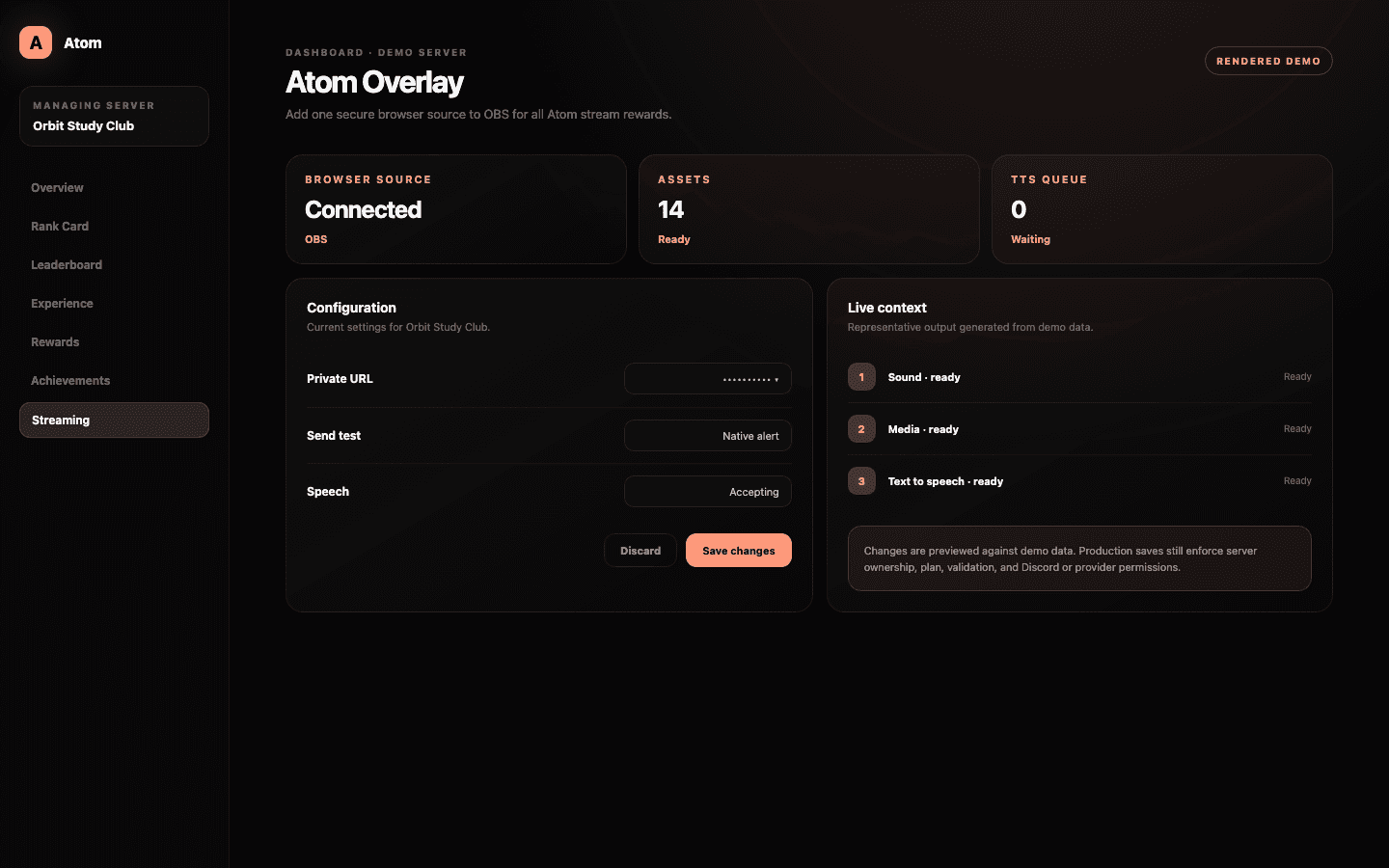
Atom Overlay is the browser-source runtime for streaming rewards. A server receives a private credential URL that connects OBS with Atom’s sound, media, native alert, and text-to-speech effects. The dashboard shows connection state, asset context, tests, and speech queue controls.
01
The overlay URL is a credential and should never appear in a public screenshot or stream description.
02
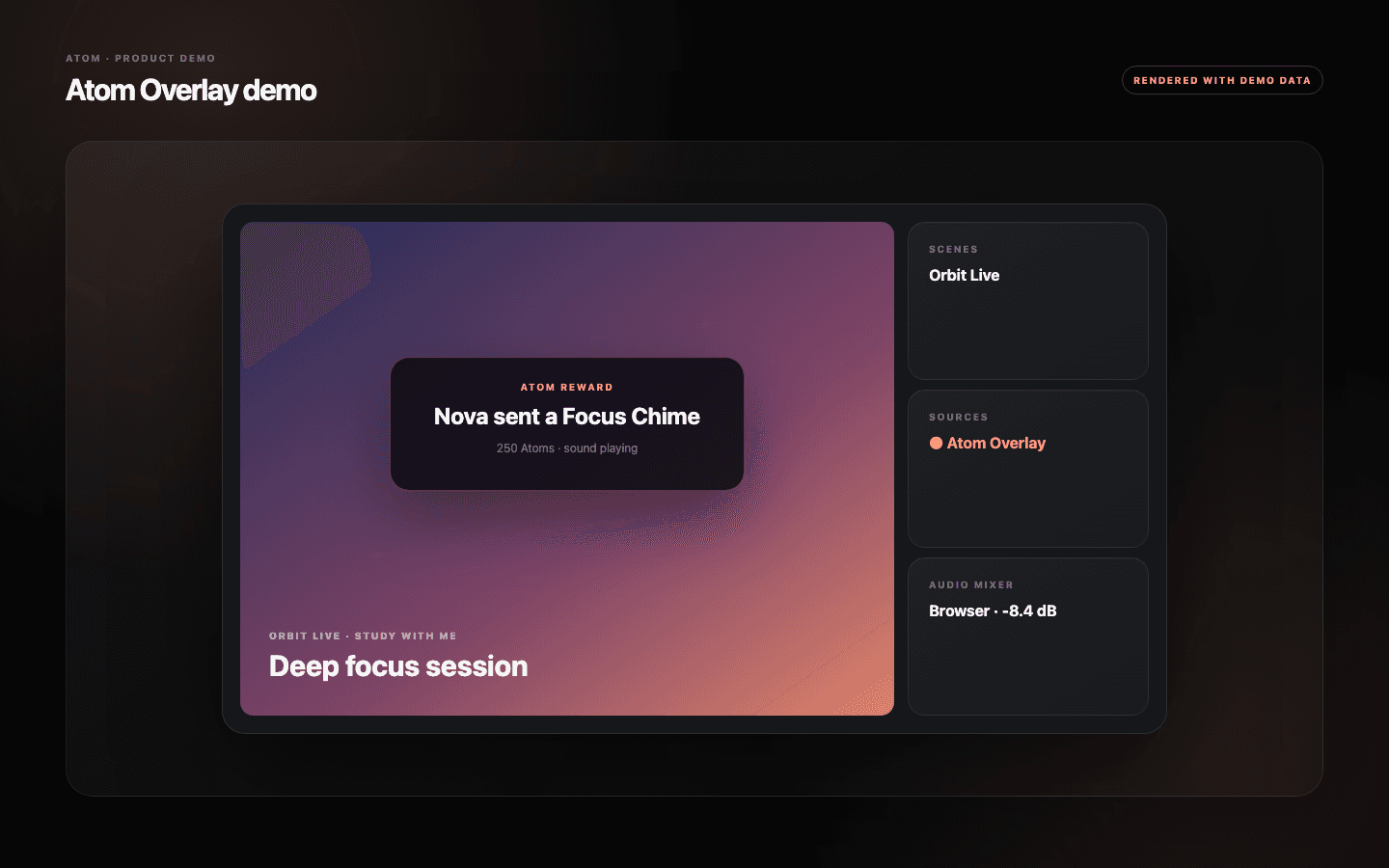
One OBS Browser Source can deliver Atom sound, media, alert, and text-to-speech rewards.
03
Test audio, visual size, and speech queue controls before members can spend currency.
OBS setup
Treat the private URL like a stream key with a smaller job.
Open Streaming → Overlay, copy the browser-source URL, and paste it into a new OBS Browser Source. Set the source to the canvas dimensions used by the scene and enable OBS control audio when sound or speech must reach the broadcast mix. Keep the source above scene elements it should visually cover.
Anyone with the credential can potentially control effects for that server, so never display the complete URL in a tutorial, public screenshot, or shared scene collection. If it is exposed, rotate or regenerate it through the supported dashboard path and update OBS immediately.
A rehearsal path
A connected badge proves transport, not presentation.
Use Send test for each supported effect family: native alert, sound, media, and text to speech. Confirm that visuals fit the safe area, audio reaches the expected OBS track, and one effect completes before the next begins. A browser source can be technically connected while muted, hidden behind another layer, or cropped outside the scene.
Test using the same OBS profile and scene collection used for the live broadcast. Studio Mode, monitoring devices, and audio routing can differ from a quick local check. The creator—not the viewer spending Atoms—owns the final verification of volume and composition.
Text-to-speech operations
Speech needs controls that work during a live moment.
The overlay manager provides controls to pause new speech, stop the message currently speaking, and clear queued messages. These are operational safeguards for a live creator or moderator; they should be reachable before text-to-speech rewards are published in the Store.
Store configuration adds character, link, cooldown, and availability rules before a message reaches the overlay. Use both layers. Input validation reduces predictable abuse, while live queue controls handle context that no static rule can perfectly anticipate.
Live reliability
Monitor the source, protect the credential, and keep a fallback.
Check overlay connection state during preflight and after network changes. Keep a scene or hotkey that can hide the browser source if an effect becomes disruptive. If the overlay disconnects, pause affected Store items rather than allowing members to spend on a delivery path the creator cannot observe.
The streaming article describes the full operating loop from earning Atoms through Store History. Overlay is the final delivery lane for only some reward types; Discord roles, Twitch VIP, and manual rewards have different fulfilment paths and should not be diagnosed through OBS.
Common questions
What administrators ask before they switch it on.
Which rewards use the Atom Overlay?
Sound, media, native alert, and text-to-speech rewards use the browser-source delivery path.
Is the overlay URL safe to share?
No. Treat it as a private credential. Rotate it if the full value is exposed.
Why can I see an alert but not hear it?
Check OBS Browser Source audio control, mixer routing, monitoring, track selection, and whether the source itself is muted.
Can I stop text to speech during a stream?
Yes. The dashboard includes controls to pause new speech, stop the current message, and clear the queue.